A workspace you can arrange
Move and resize windows, switch through the taskbar, and use the desktop’s layout controls. Keep a report beside a task or a website control beside reference material.
 PC NET DESKTHE PLATFORM GUIDE Technology
 THE WORKSPACE BEHIND THE WEBSITE
Build the website. Understand the visitor. Plan what happens next.
PC NET DESK brings connected analytics, competitor intelligence, website creation, and scheduled changes into a familiar desktop. See the journey from first visit to inquiry, then use Core Console, the Style Engine, and the Website Builder Engine to improve it.
Four connected tools. 100 capabilities. 18 interface screenshots.
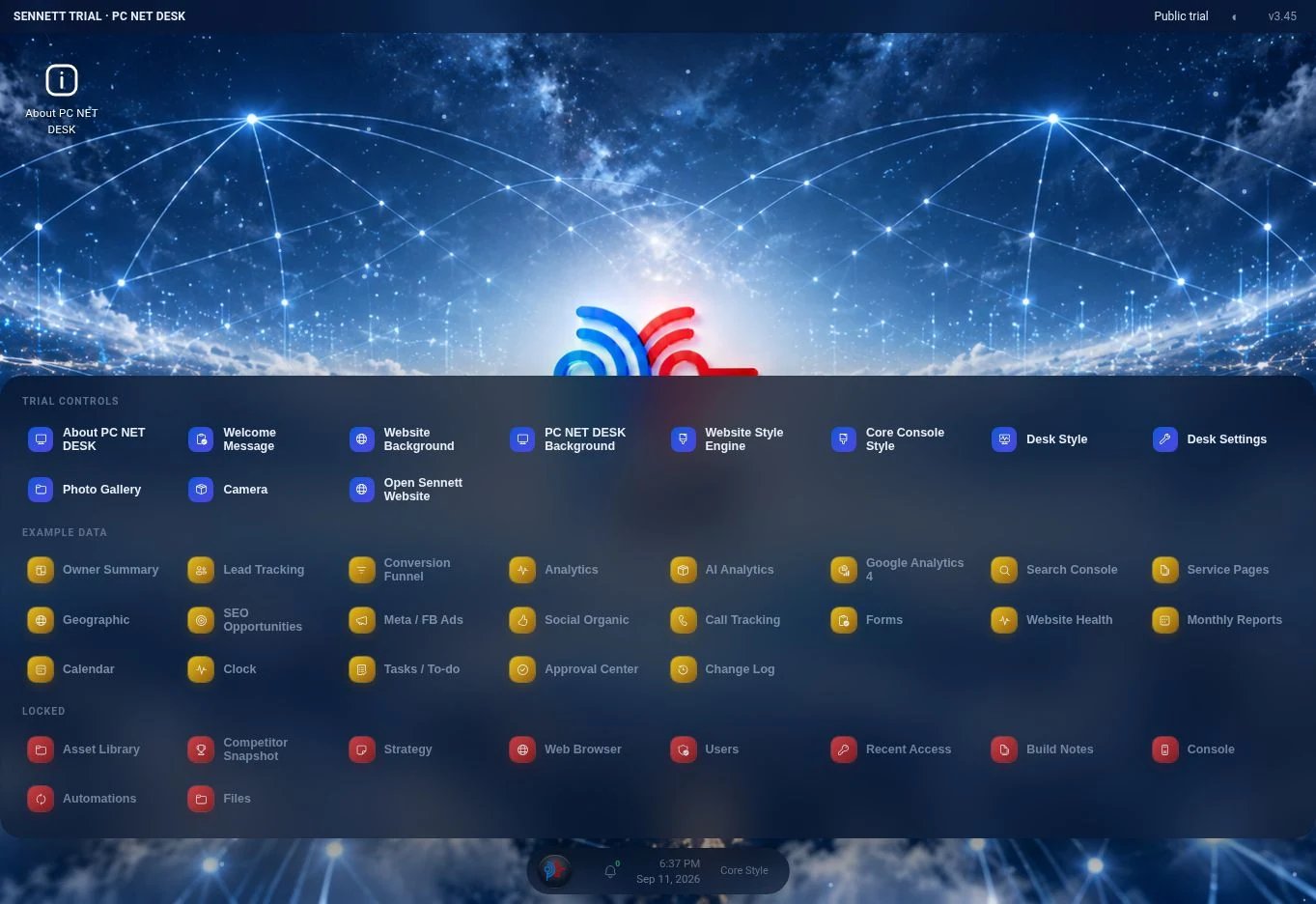 View the actual interface
 A familiar starting point.
Apps, windows, and website controls, brought together.
THE BIG PICTURE
The tools overlap by design. They let you move from understanding a problem to making a change, without rebuilding your working context.
The desktop that brings the tools together.
The organized dashboard behind the workspace.
A coordinated design system with visible controls.
The system for content, structure, design, and published pages.
Desk and Console are two ways into the management tools. The Style Engine changes presentation. The Builder changes the content and structure of a page. A command line inside Core Console provides a text-based route to supported operations.
Connected reporting shows what is happening. The Builder and Style Engine provide the controls to improve it. Tasks, approvals, notes, and scheduled settings keep the work organized from observation to delivery.
This guide describes the connected platform. Screenshots are earlier trial and interface captures illustrating the controls; visible values and availability labels belong to those captures.
01 / PC NET DESK
Keep the tools you need open together. Review a task, inspect an interface, and reach the next control from the same workspace.
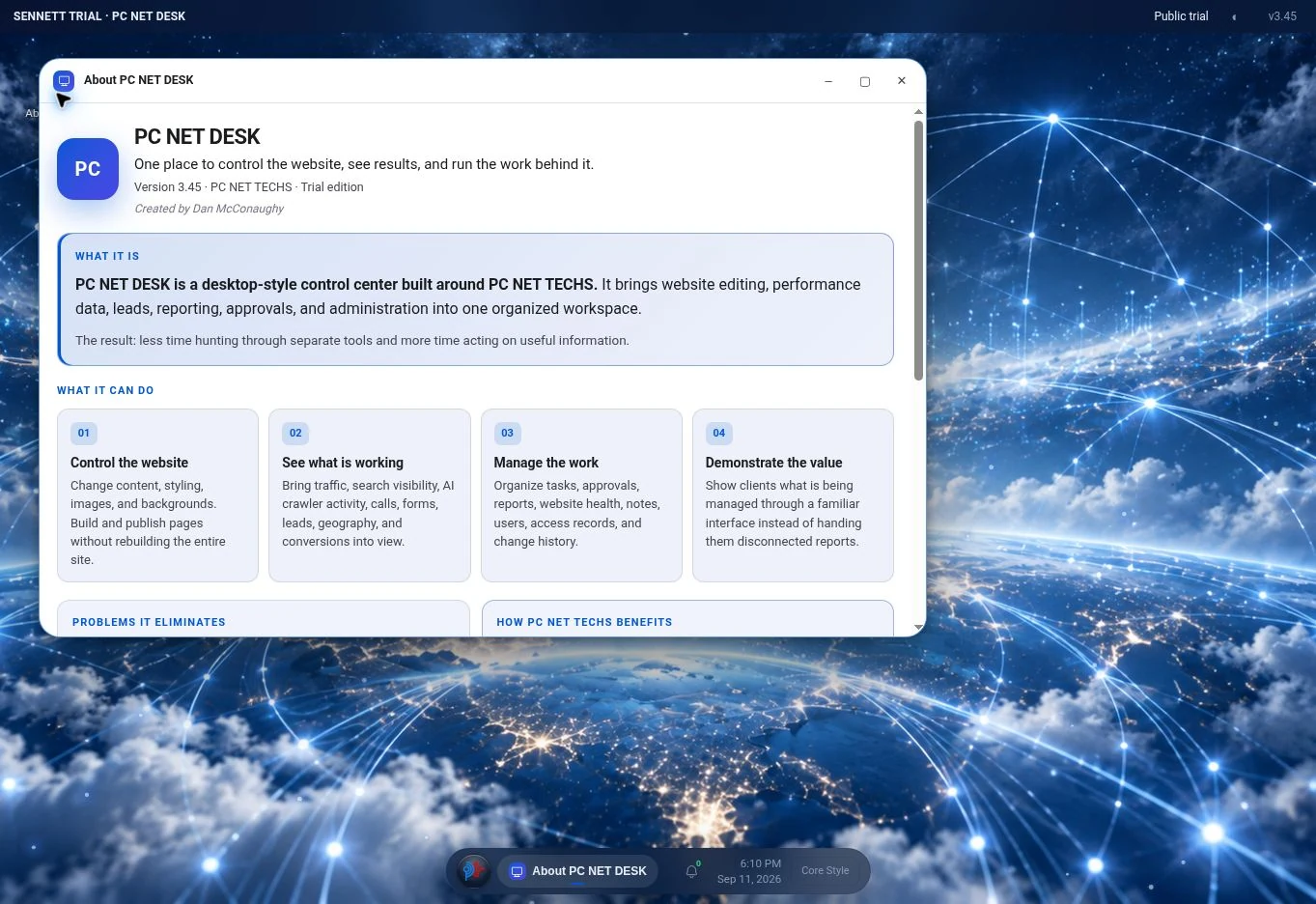 Explore screenshot ↗
Move and resize windows, switch through the taskbar, and use the desktop’s layout controls. Keep a report beside a task or a website control beside reference material.
The launcher groups website editing, connected reporting, operations, and administration. Open the relevant tool directly, then keep related tools in view as the work develops.
Desktop backgrounds, appearance, and settings are separate from the public website’s design. Change your working environment without confusing it with the customer-facing page.
02 / CORE CONSOLE
A structured dashboard for the website and its surrounding work, with a command line for supported tasks that are faster to type.
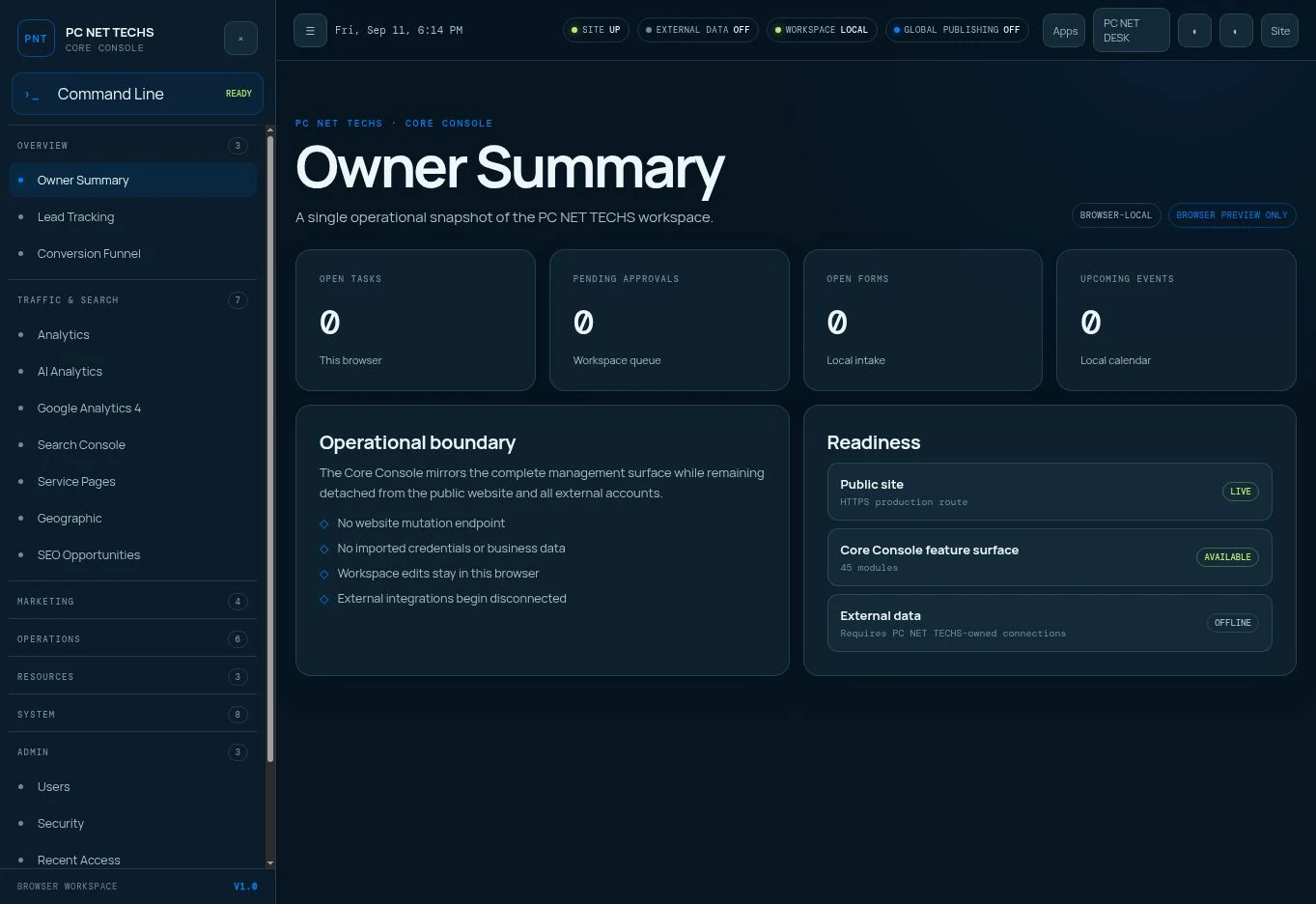 Explore Core Console ↗
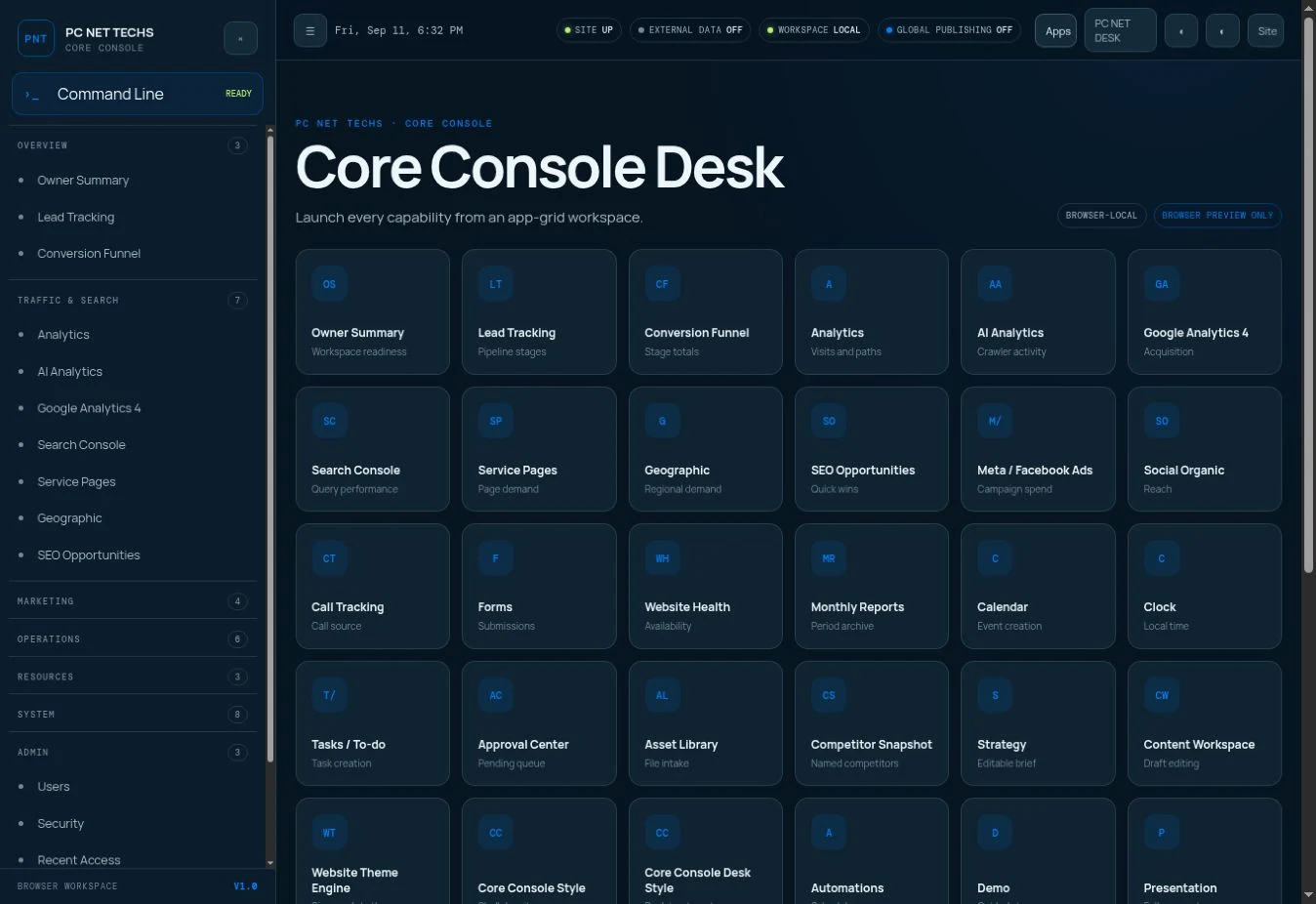
Owner Summary, traffic, search, marketing, and website activity give the workspace its analytical structure.
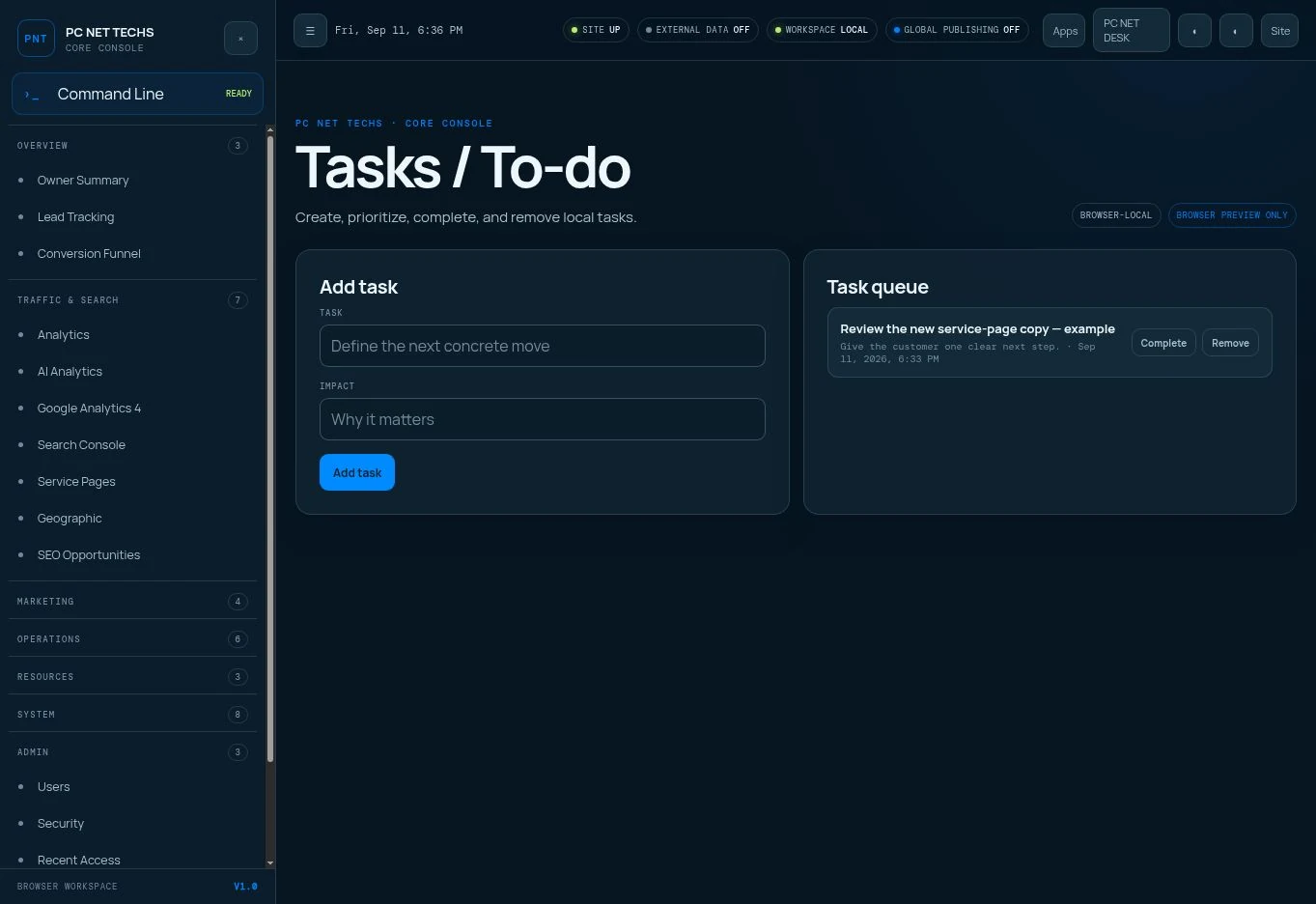
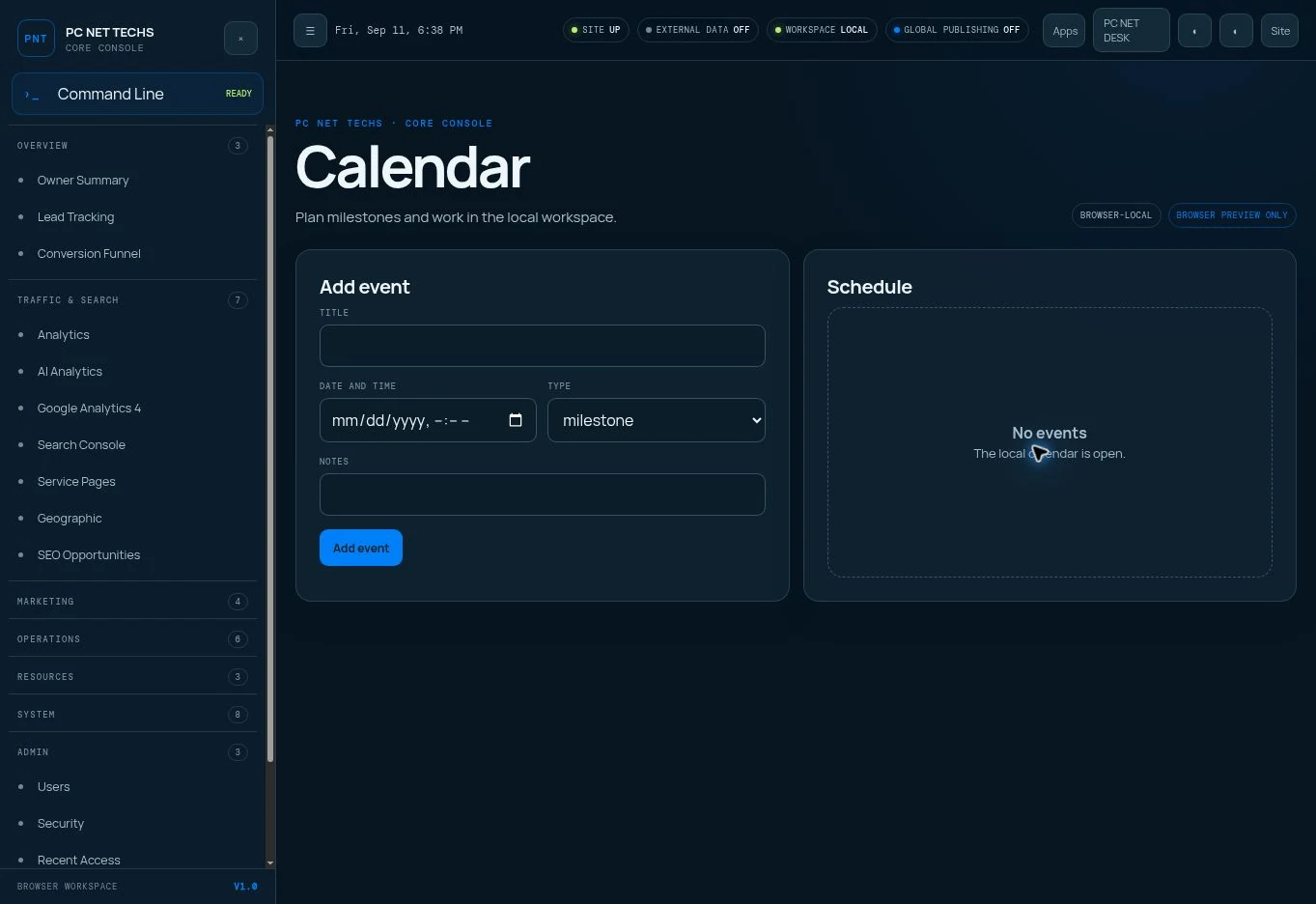
Tasks, calendar events, approvals, notes, forms, and reports turn observations into recorded work.
Styles, content tools, scheduled changes, and administrative controls provide routes to action.
Choose a module from grouped navigation to work on one subject at a time. Desk offers a windowed alternative to this focused dashboard.
First-party visits, GA4, search, campaign activity, calls, and competitor research give the dashboard its reporting depth. Source and period context help explain what each measure means.
The authenticated command interpreter calls the same backend functions as the supported visual tools. That reduces duplicated behavior between clicking and typing.
THE COMMAND LINE INSIDE CORE CONSOLE
Commands such as tasks, calendar, calls, and help retrieve supported information. Authorized commands can also update task status, notes, forms, and approvals.
The interpreter accepts a defined vocabulary. It does not provide an unrestricted server shell. Visual work—such as choosing an image—stays in the visual tools.
tasksLEARNhelp taskACTtask done <id>Examples above describe the authenticated command registry. The GCI preview has its own local command set; use its help command for exact syntax.
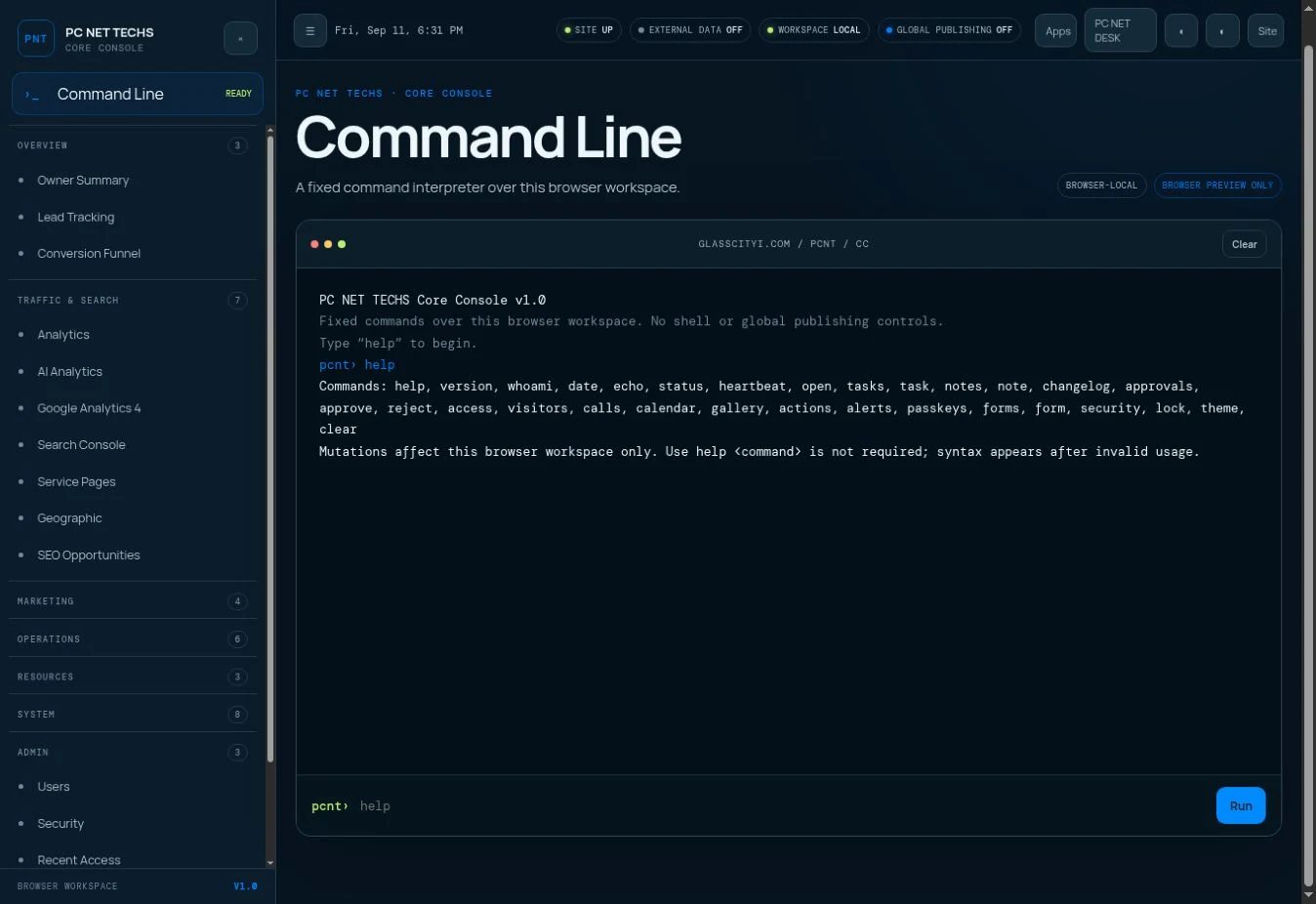 Inspect the command interface ↗
CONNECTED WEBSITE ANALYTICS
Who arrived, where they came from, what they explored, how long they stayed, and what they clicked. Core Console brings the signals together so you can understand the journey and decide what to improve.
Review visitor groups, first and latest activity, return visits, device, browser, and operating system. Available network enrichment adds approximate location and organization context; an inquiry can supply actual contact details.
Useful for: understanding your audience and recognizing continued interest.
First-party records group matching network and browser context. Connected analytics supplies its own visitor and session identifiers. A company or network match does not identify every person, and shared networks or changing devices can affect grouping.
See search, paid campaigns, social, referring websites, direct traffic, and recognized AI referrals. Referrers and campaign tags connect an arrival with its source, medium, campaign, and landing page.
Useful for: finding the channels that bring relevant attention.
The site records referrer and campaign context; connected acquisition reports organize it by channel. Search Console adds aggregate queries and search visibility. Missing source information remains direct or unknown; it does not become a guessed referral.
Follow landing pages, service pages, products, FAQs, proof, and contact pages in the order recorded. See which topics attract attention and where the observed visit ends.
Useful for: understanding interests and improving the route to an inquiry.
Page paths and timestamps establish the sequence of recorded activity. Session reports add entrances and exits within their measurement window. Individual paths show behavior; page-level comparisons show broader patterns.
Review session duration and measured engagement at the page and event level. Compare a brief arrival with deeper interaction, and compare the same page across devices or sources.
Useful for: seeing where content holds attention or needs a clearer next step.
Connected analytics calculates duration and engagement from the events it receives. Elapsed session time and active engagement are different measures. A recorded duration does not prove that someone read every word or kept looking at the screen.
Track instrumented buttons, links, phone and email actions, downloads, outbound destinations, and form activity. The page and event context show which next steps attracted a response.
Useful for: improving calls to action and locating friction before conversion.
Website events record the supported action, location, destination, and time. Reports distinguish a click from a successful form submission or provider-recorded call, so interest is not counted as a completed inquiry.
Interpret the combination of source, landing page, reading path, engagement, and actions. A service-to-FAQ-to-contact journey may suggest evaluation; a direct visit to support information may suggest an existing need.
Useful for: answering the questions visitors appear to be asking.
The platform records activity. Intent is a reasoned interpretation of that evidence, strengthened by what a visitor actually says in an inquiry. A page view alone does not establish budget, urgency, identity, or a decision to buy.
Source · campaign · landing page
Page view · engagement · next page
Sequence · return activity · clicks
Button click · submission or call
A visit reaches a service page, continues to FAQs, and uses the contact action. The source, page order, engagement measures, and event record describe that activity.
The visitor may be evaluating that service. Make the explanation, trust signals, and contact route easy to find; use an actual inquiry to understand the person’s need.
First-party page records capture visits and context. Connected analytics and instrumented events supply engagement and interactions. Call and form records complete the response picture.
Read page activity alongside traffic sources, campaign reports, geography, devices, and search performance. Keep each source’s definitions and reporting period visible.
Find the unclear page, weak next step, or missing answer. Record a task, improve it in the Builder, publish the change, and review the next reporting period.
COMPETITOR ANALYSIS & ANALYTICS
Compare how other businesses are found, what they offer, and how they present themselves. Bring those findings back to the pages, messages, and experiences you control.
Connected research combines public website information, search data, review signals, and third-party estimates. Compare the same market and time period, and keep the source attached to the finding.
Turn an opportunity into a page ↗| Research lens | What you compare | What it helps you decide |
|---|---|---|
| Search visibility | Queries, ranking pages, topic coverage, and estimated visibility. | Which questions and search opportunities your pages should address. |
| Service coverage | Services, industries, locations, and the depth of public explanations. | Where to build a useful service, location, or audience page. |
| Positioning | Messaging, offers, evidence, and calls to action. | How to make your own value and reasons to choose you clearer. |
| Reputation | Public ratings, review volume, and recurring review themes. | Which concerns to answer and which credible proof to make visible. |
| Website experience | Mobile presentation, navigation, content clarity, and consistent review criteria. | Which usability and presentation changes deserve priority. |
Your own analytics describes activity on your site. Competitor research describes public observations and third-party estimates. Those sources answer different questions and should retain their labels.
A missing explanation, a confusing service choice, an unanswered question, or weak proof is actionable. A broad comparison score becomes useful when the underlying reason is clear.
Record the opportunity, create the work, and use the Builder and Style Engine to deliver it. Measure the effect on your own site’s acquisition, engagement, and inquiries.
03 / WEBSITE STYLE ENGINE
Change the feel of a website through coordinated settings for theme, color, typography, icons, backgrounds, scale, and motion.
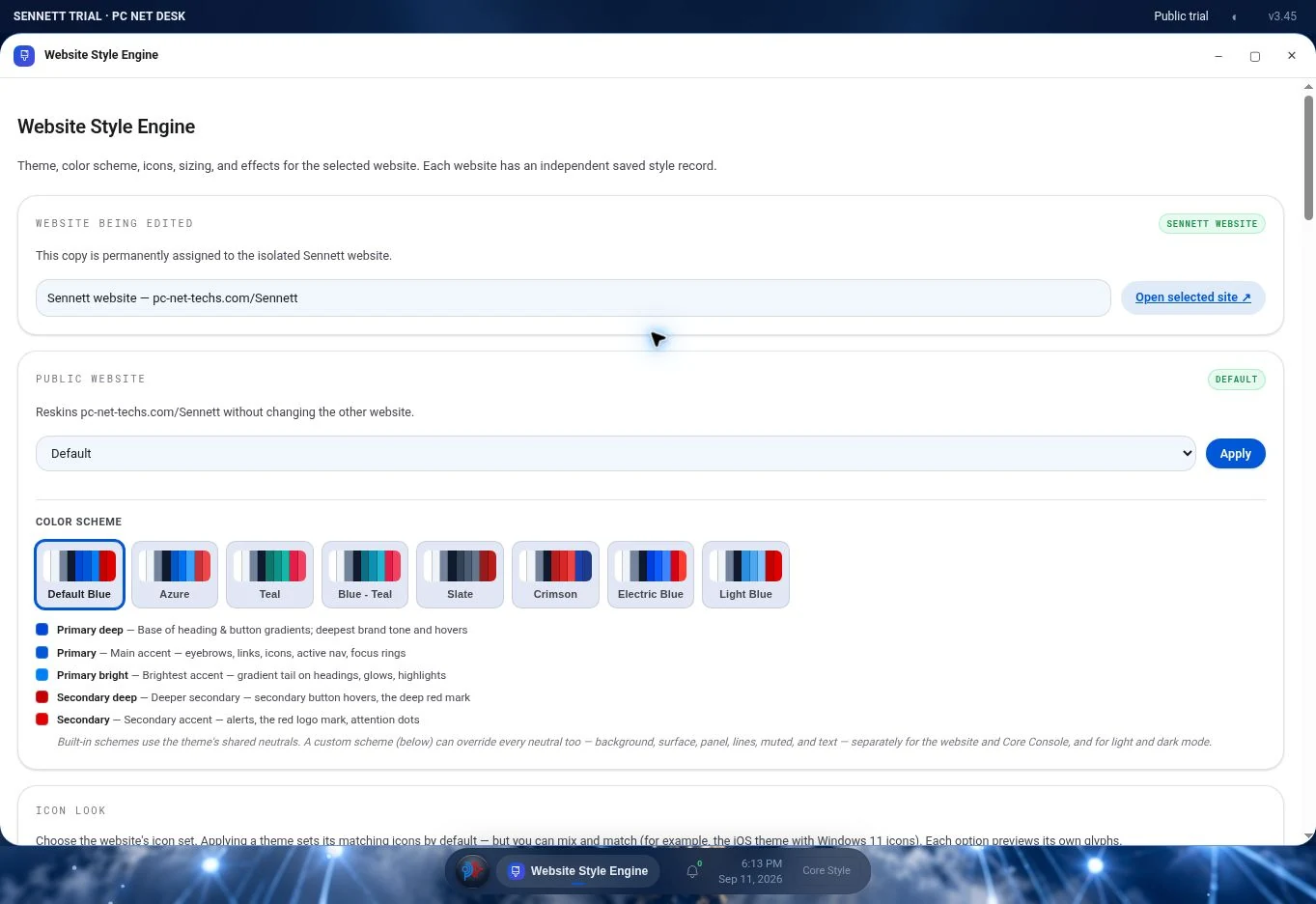 Inspect the style controls ↗
Built-in palettes coordinate primary and secondary colors. Custom schemes can also define backgrounds, surfaces, panels, borders, muted text, and body text for light and dark appearances.
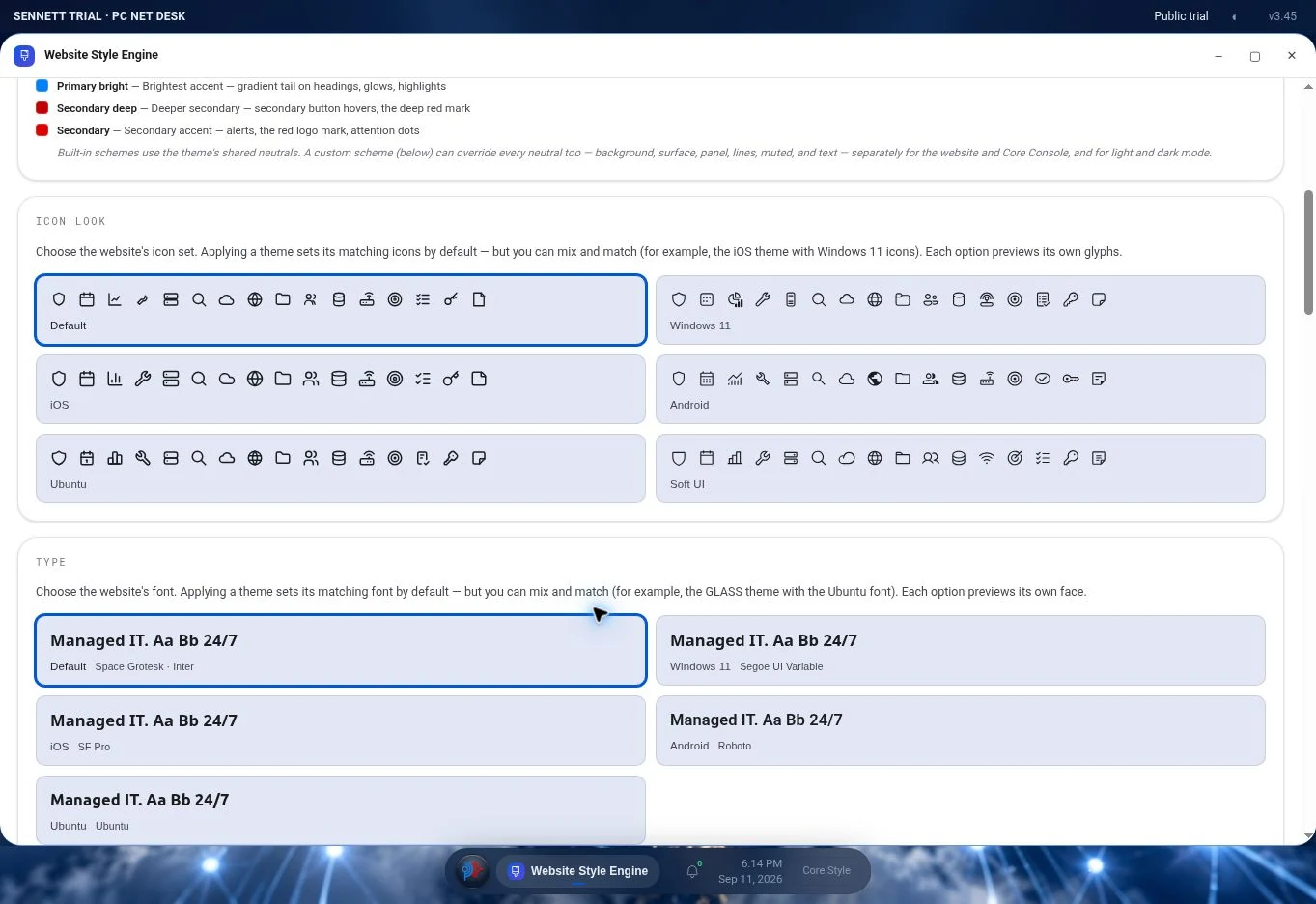
A theme supplies a starting point. Fonts and icon families can be selected separately, so the site’s typographic voice does not force a particular icon treatment.
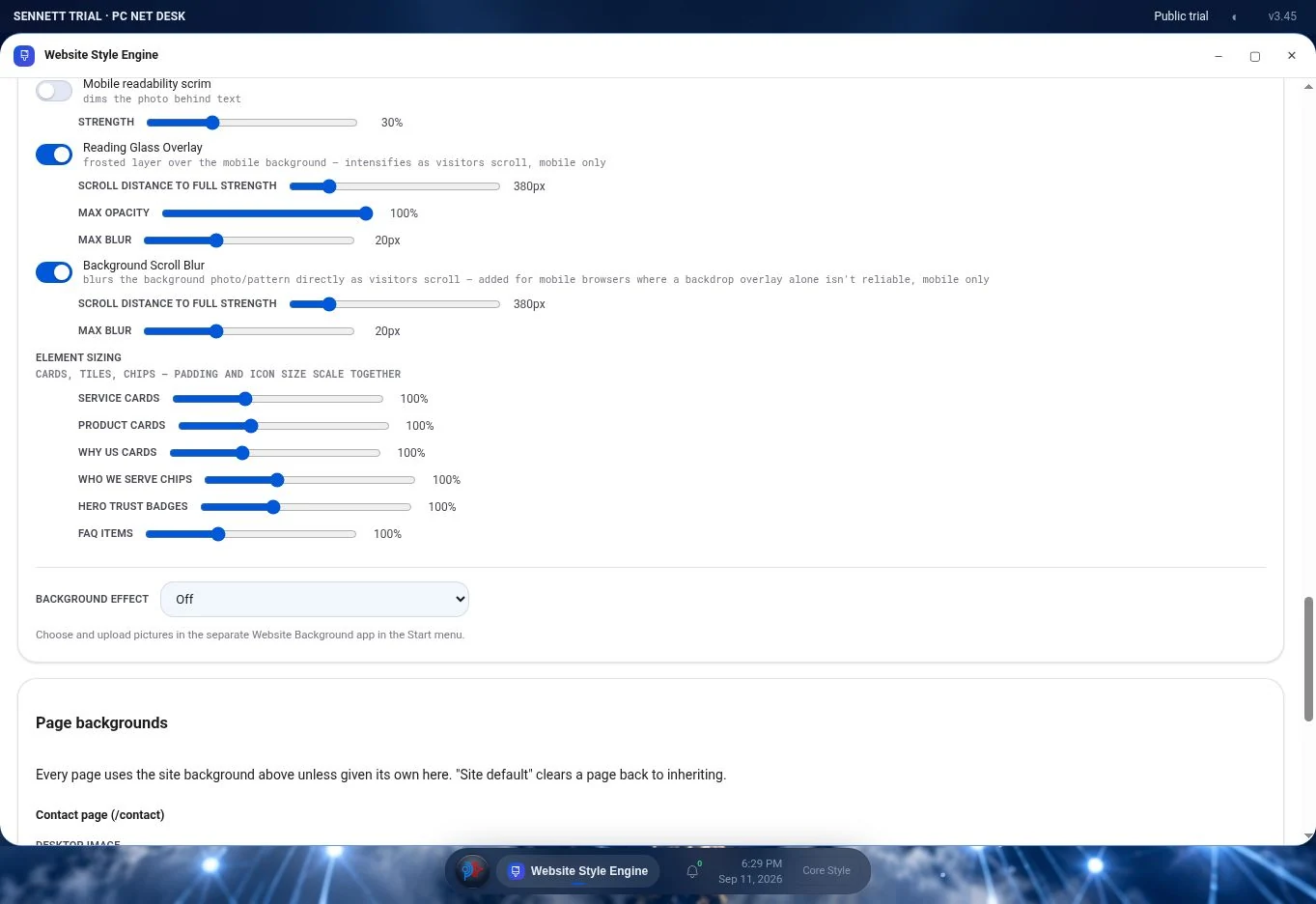
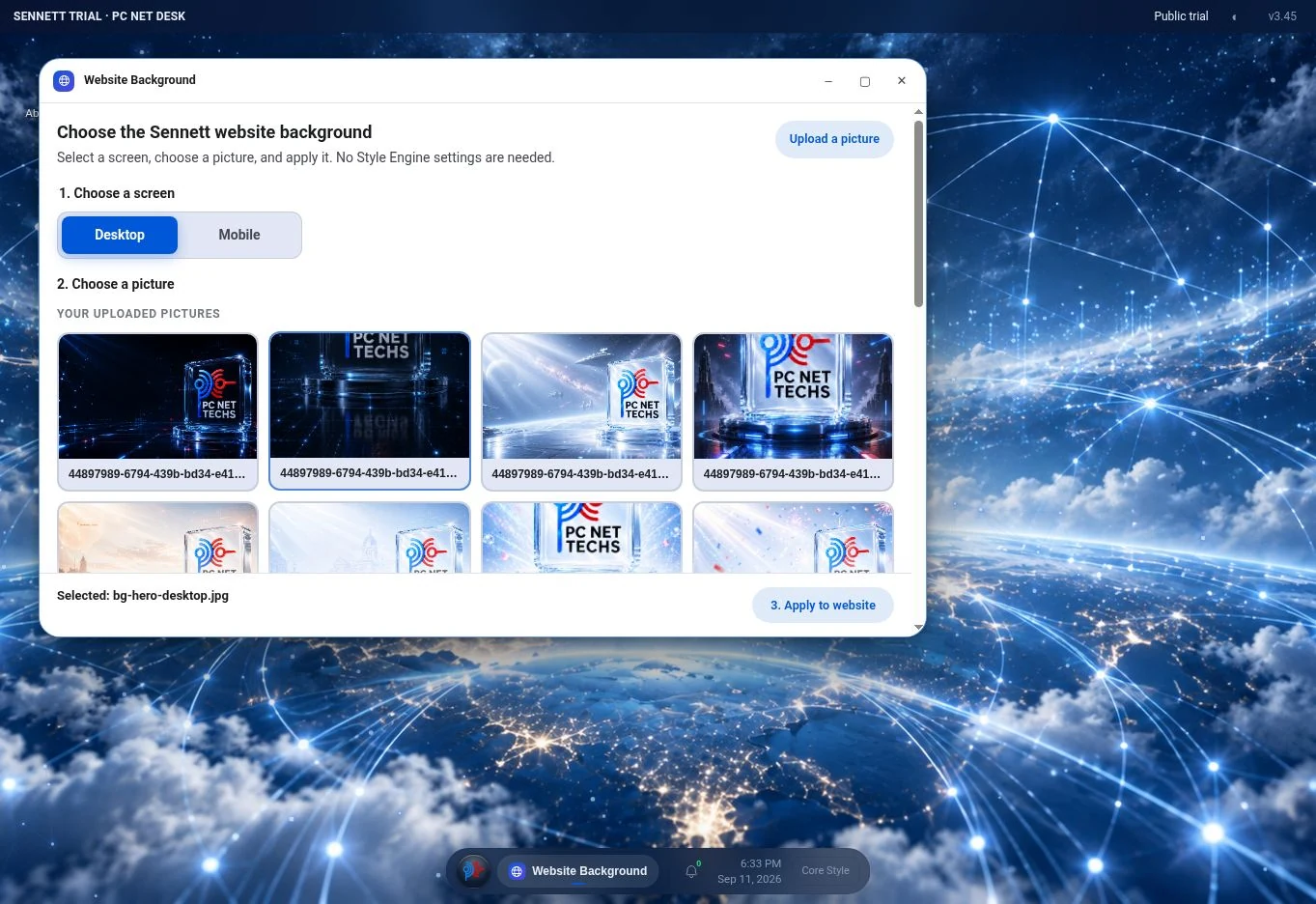
Desktop and mobile backgrounds, dimming overlays, reading glass, scroll blur, and element sizing help balance the visual treatment with legibility.
Ten effects cover linked networks, falling data, circuits, pulsing hexagons, moving packets, warp starfields, auroras, radar sweeps, perspective grids, and signal ripples. Adjust intensity, amount, density, speed, strength, colors, and supported pointer, click, or double-click responses.
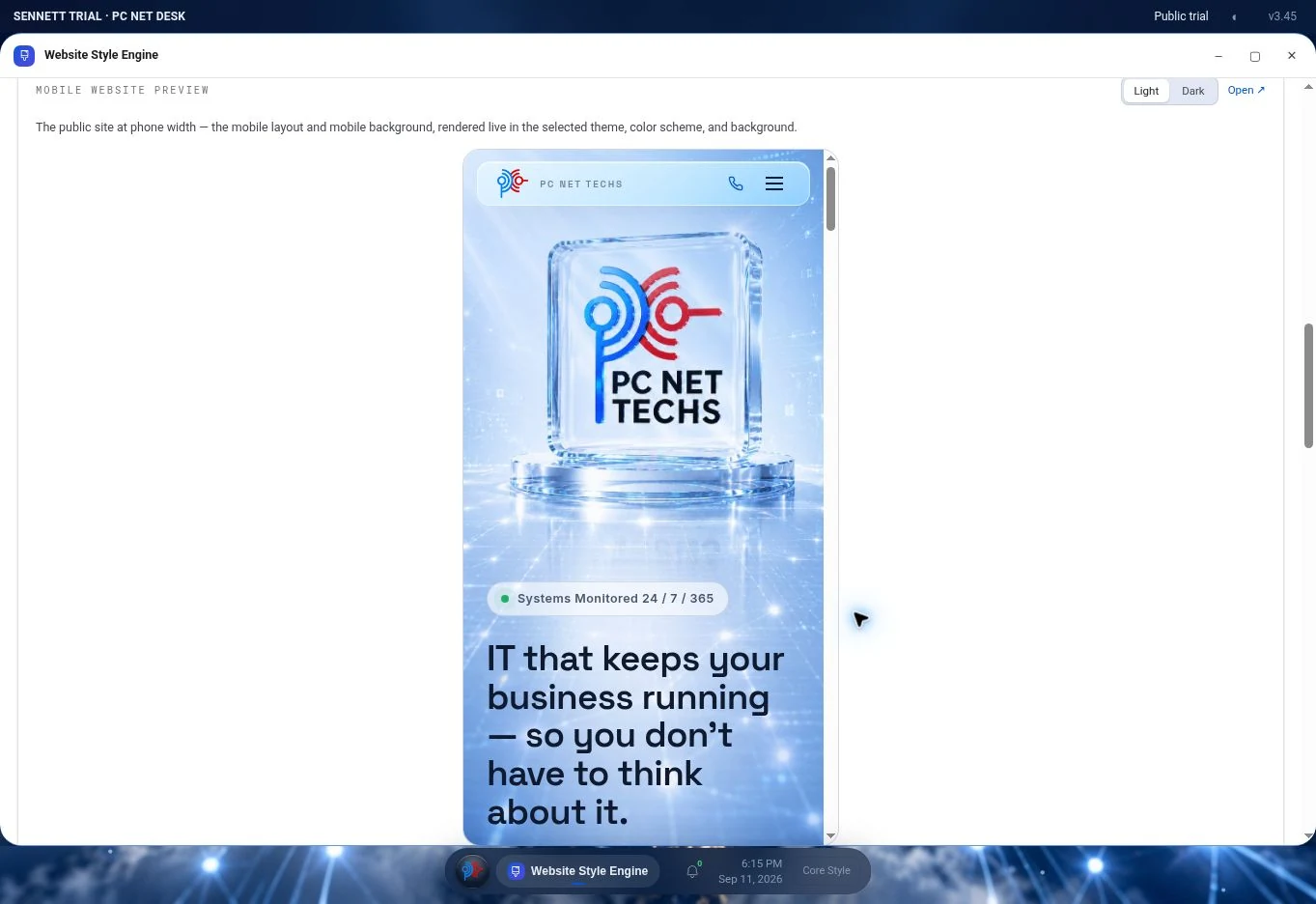
Mobile and desktop previews render the page at different widths. Light and dark preview controls help reveal problems before applying a treatment.
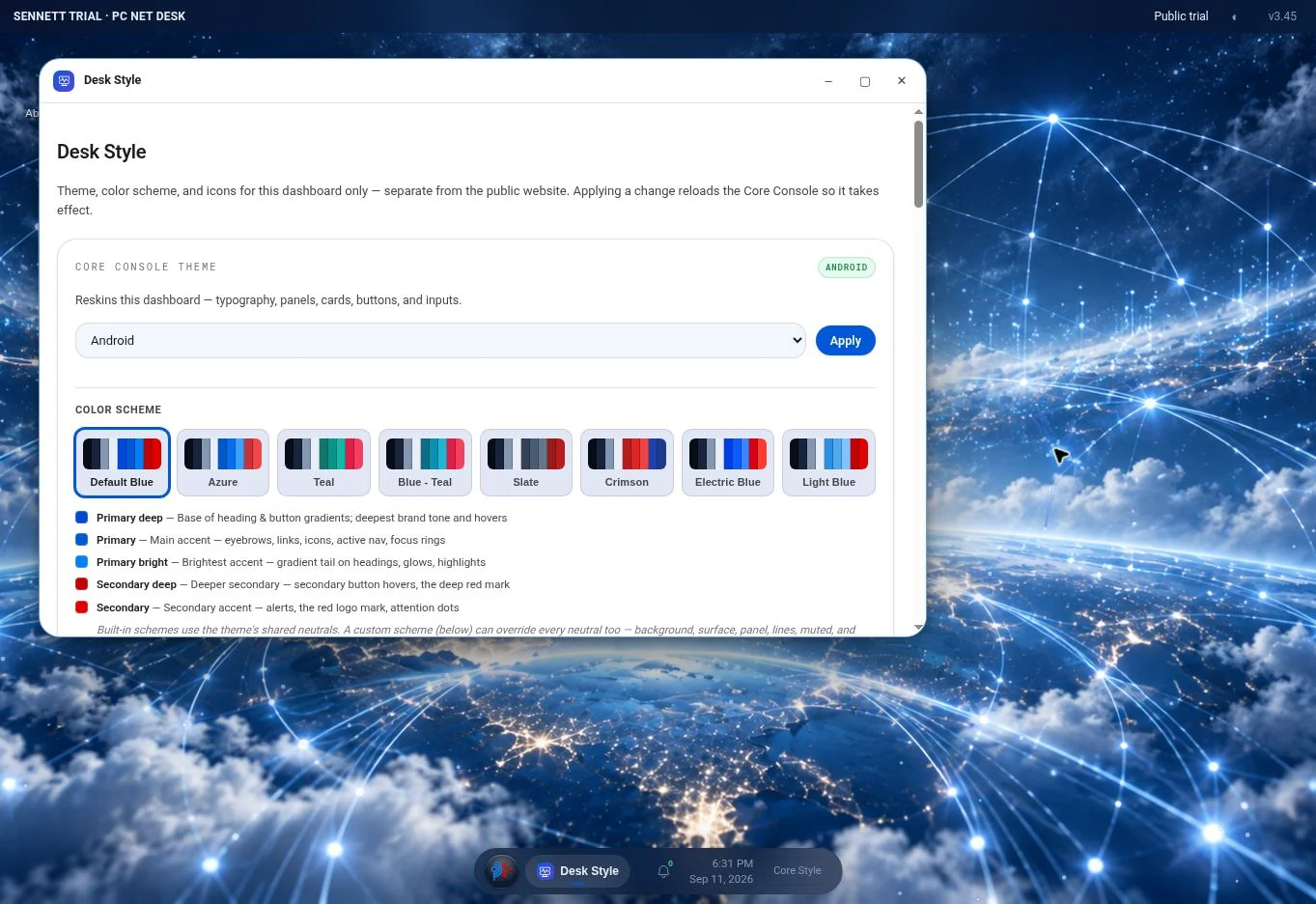
Website Style Engine, Core Console Style, and Desk Style target different surfaces. A presentation choice for visitors does not have to dictate how the operator’s tools look.
 Enlarge ↗
 Enlarge ↗
 Enlarge ↗
 Enlarge ↗
04 / WEBSITE BUILDER ENGINE
A structured creation engine for service, campaign, location, and audience pages. Edit content, assemble supported sections, design the experience, and publish an independent page.
Select a field from the editor or click text in the preview. Edit headings, body copy, cards, FAQs, buttons, and supporting content.
Add, duplicate, remove, and reorder supported repeated items. Reorder the middle sections while keeping Hero and Contact at the ends.
The authenticated editor renders the website in draft scope, using the same page components and text-fitting behavior as the site.
Choose a valid name. Publish content, structure, style, and logo as an independent snapshot at /published/name.
Saving a draft gives you a place to work. Publishing copies that draft into a specific page’s saved snapshot. Editing the next draft does not silently rewrite the last published page.
The URL selector lists existing published targets. Replacing one asks for confirmation and affects that target’s snapshot. The main homepage continues to read its separate live content.
That makes the Builder useful for producing variations and dedicated pages from a consistent website system.
The Builder edits the supported website components. Contact identifiers, business metadata, and every possible layout are not unrestricted drag-and-drop fields.
 Inspect the content editor ↗
 Enlarge ↗
 Enlarge ↗
INSIDE THE WEBSITE BUILDER ENGINE
The engine connects an editable field registry, reusable components, design settings, and published records. Each layer solves a different part of building a complete page.
Headings, lead text, body copy, button labels, FAQs, and cards have registered fields. Search the field list or select supported text in the preview. Length and text-fitting constraints help the finished copy fit its component.
The advantage: edit the right message with the layout in view.
Add, duplicate, remove, and reorder supported navigation items, badges, service cards, chips, products, nested bullets, and FAQs. Collection limits protect the layout. Reorder middle sections while Hero stays first and Contact stays last.
The advantage: build depth and change the story without recreating the page framework.
Choose the theme, palette, typography, icons, backgrounds, sizes, and effects from the Style tab. Upload the logo and control its supported header and footer visibility. Preview the treatment at desktop and mobile widths.
The advantage: content, layout, and brand can be refined together.
The editor renders the site’s components with draft content, structure, design, and logo state. Shared rendering and text-fitting behavior keep the preview tied to how the website is built.
The advantage: evaluate the page as a visitor will encounter it before publishing.
Choose a valid name or an existing destination. Publishing copies the draft into that page’s content, structure, style, and logo records at /published/name. Replacing an existing destination asks for confirmation.
The advantage: the next draft can evolve without silently changing the last published page.
WEBSITE AUTOMATIONS
Prepare a supported website setting, choose its value and time, and let PC NET DESK apply it when due. Use one-time changes or repeat them daily or weekly.
From the visual theme to how a background responds to a pointer, each action targets a defined setting with a validated value.
Switch the website’s design family or color scheme for a planned presentation change.
Control background images and visibility independently for the two screen contexts.
Enable the desktop or mobile dimming overlay and set its strength.
Set the effect, colors, intensity, amount, density, speed, strength, and mobile behavior; adjust supported pointer, click, and double-click responses.
Prepare the presentation ahead of time, then give the beginning and end their own scheduled actions.
Give the action a meaningful name and select the registered website setting.
Set a date and time, choose one-time execution, and enable the action.
Add a second action for the end of the period. The first action does not imply an automatic undo.
Each action holds its name, setting, value, scheduled time, repeat rule, enabled state, and last-run information. Edit, disable, or delete it as the plan changes.
The platform checks for due actions during website or Console rendering, with a one-minute throttle per running instance. A 15-minute heartbeat also checks during quiet periods. Due values are saved and the settings cache is refreshed.
Execution records the last-run time. Daily and weekly actions advance to their next due time. When multiple due actions change the same setting, the later scheduled value takes precedence.
AI-READY. CREATED FOR AGENTS.
PC NET DESK was created to be used by agents. Named commands, structured records, explicit editing scopes, and shared backend functions give an agent a way to understand the work, take a defined action, and verify the result.
help task
tasks
task done <record-id>
tasks
Discover the operation. Read its target.
Make the authorized change. Verify the result.
The command interpreter calls the same functions as the supported visual apps. An agent can perform a defined operation and a person can inspect it in the workspace.
Field IDs, record IDs, component groups, typed settings, and draft/published scopes tell an agent what it is changing. The Builder separates preparation from publication.
The technical reference documents the command and API contracts, data model, source files, and operating constraints. A JSON catalog and plain-text guide provide the same knowledge in directly consumable forms.
Agents use authorized browser sessions and supported operations. A dedicated agent adapter can connect those operations to an AI system; the reviewed source does not bundle a model, an MCP server, or an autonomous planner.
WHY THE PARTS BELONG TOGETHER
Consider a new service page. Connected insight identifies the need, the creation tools shape the response, and the workspace keeps delivery and follow-up in view.
Review visitor paths, search demand, campaign response, and competitor gaps in Core Console. Find the question or service that deserves a clearer page.
Create a task, add a date, and record an approval decision where the workflow needs one.
Use the Builder’s supported content and sections. Refine the page’s visual treatment with its style controls.
Review the draft, select the destination, and publish the authenticated Builder’s independent snapshot.
Record the delivery and review sources, page engagement, clicks, and actual inquiries. Compare consistent periods and use the findings to plan the next improvement.
THE COMPLETE CAPABILITY DIRECTORY
100 capabilities, organized by the work they help you do. Open any entry for its mechanism, practical purpose, and relevant operating detail.
Reporting entries describe connected data sources. Website entries explain the supported editing and publishing controls. Scheduled actions describe changes the website can apply from a saved schedule.
No capabilities match. Try a broader term or clear the search.
The browser desktop launches management apps in movable, resizable windows with a shared launcher, taskbar, and notifications.
Keeps the information and controls for related work visible together.
Grouped app shortcuts open windows; controls move, resize, minimize, maximize, close, and snap them. The browser remembers supported window layouts.
Lets the operator choose between a focused full-size app and several visible tools.
Dedicated settings control the desktop and dashboard separately from the public website. Export, import, and reset tools manage supported workspace records.
Makes the workspace comfortable to use while keeping visitor-facing design decisions separate.
The notification tray combines access activity, new leads, detected AI crawler activity, and change-log updates. Selecting an event opens its related app, and a local seen-state distinguishes new activity.
Makes changes discoverable while the operator works in other tools.
The gallery accepts uploaded media and browser-authorized camera captures, then makes supported images available to the platform’s editing and appearance tools.
Keeps reusable imagery close to the pages and designs that need it.
The library groups reusable files and references by type for discovery and selection.
Gives brand material a consistent home and reduces repeated uploads.
An embedded browser view loads destinations that allow embedding, with an external-tab route where available.
Keeps reference material close to the work while respecting the destination’s own access and framing rules.
Separate web manifests provide stable app identities, icons, start URLs, and standalone presentation for the public website, Core Console, and PC NET DESK. Installation support depends on the browser.
Makes a frequently used workspace easier to find and open from the device.
Installation describes the app shell; it does not promise an offline copy of live administrative data.
Browser-local storage remembers window positions, sizes, minimized and maximized states, appearance preferences, and notification read state. Layout persistence is separate from shared business records.
Reduces repeated setup while keeping each operator’s device comfortable to use.
Desk presents apps at full screen on mobile and disables desktop drag, resize, and snapping behavior at that size. Website background and appearance controls also distinguish desktop from mobile.
Preserves usable controls and reading space across devices.
Connected reporting supplies headline traffic, inquiry, marketing, and health indicators; detailed modules explain the activity behind the summary.
Provides a useful starting point for deciding what deserves attention.
Connected inquiry records bring source, date, contact context, and stage into a reviewable lead view.
Shows which channels generate inquiries and what needs follow-up.
Connected stage totals compare visits, service-page interest, contact-page activity, and recorded calls or form submissions over the selected period.
Reveals where people progress and where the path needs improvement.
The site records page paths, timestamps, referrers, and browser context. The reporting layer groups related visits and enriches network records with available location and organization information.
Makes the site’s own activity available beside the tools used to improve it.
Recorded agent activity is classified separately from human referrals; recognizable referrers and campaign information identify supported AI traffic sources.
Shows how machine discovery and AI-driven referrals contribute to site activity.
A crawler visit shows access; it does not establish that an AI answer recommended the business.
Connected GA4 reports supply users, sessions, engagement measures, sources, devices, landing pages, and instrumented events.
Connects acquisition quality with what visitors actually do after arriving.
Connected search reporting compares impressions, clicks, click-through rate, position, queries, and pages across reporting periods.
Identifies pages to improve and the search demand they could serve.
Search queries describe aggregate search performance; they are not a transcript of each individual visitor’s searches.
Page-level reporting associates service paths with visits, engagement, and recorded inquiry actions.
Helps prioritize services and page improvements using observed interest.
Connected reports group activity by available country, region, and city estimates, with source and page context where available.
Supports service-area planning and content suited to the markets attracting attention.
Search indicators and page comparisons highlight opportunities such as improving titles, answering questions, and deepening useful service content.
Connects visibility gaps with concrete work for the content and website tools.
Connected campaign reports show spend, reach, impressions, clicks, leads, and cost per lead for the reporting period.
Makes paid traffic accountable to the website activity and inquiries it produces.
Connected social reporting brings follower trends, reach, engagement, and post performance into the same review environment.
Helps connect publishing effort with the topics and channels that attract interest.
The call-provider connection supplies recorded call activity and attribution for comparison with website and campaign reporting.
Makes phone response visible alongside forms and other digital inquiries.
A phone-link click and a provider-recorded call are different events.
Connected checks report availability, links, forms, tracking, indexing, sitemap, certificate, and page-speed findings.
Brings technical problems into the same workflow as content and marketing improvements.
Connected competitor research organizes public information and third-party estimates into a consistent comparison, with a source and reporting period for interpretation.
Helps prioritize credible differentiation and useful content improvements.
Competitor traffic estimates are distinct from your own first-party analytics; this does not expose competitors’ private visitor records.
Visit records group network and browser context, first and latest activity, and the paths seen. Identified inquiry records provide contact context when someone supplies it.
Distinguishes anonymous interest from an actual known inquiry.
A network or organization match is not a verified personal identity; shared networks and changing devices affect grouping.
Network enrichment supplies available organization and approximate geography; browser context supplies device, operating system, and browser.
Helps assess service-area fit and the experience visitors receive on different devices.
Referrers and UTM campaign parameters feed source and medium reporting across search, paid campaigns, social, referrals, direct, and recognized AI sources.
Shows which channels bring useful attention rather than just volume.
Direct or unknown traffic is retained when the source cannot be established.
Timestamped page records and connected session reports reveal entrances, subsequent pages, repeated views, and exits within the observed visit.
Shows the routes people take through services, proof, FAQs, and contact information.
Connected session and event reporting supplies duration and measured engagement time at the available session and page level.
Helps separate a brief arrival from a visit involving deeper interaction.
Elapsed time and active engagement measure different things; neither proves that every word was read.
Instrumented events record supported link and button clicks, phone and email actions, downloads, outbound links, and form activity with page and event context.
Reveals which calls to action work and where interest stops short of an inquiry.
A click, a successful submission, and a completed call remain distinct outcomes.
First-party grouping and analytics identifiers expose repeat activity where the browser and collection context allow it.
Helps identify topics attracting continued attention and compare new with returning engagement.
Cross-device visits or cleared identifiers do not automatically resolve to one person.
Source, landing page, page sequence, time, and actions provide evidence for an operator’s intent assessment, such as researching a service or seeking support.
Turns activity into a useful hypothesis about what the website should explain next.
Intent is inferred from behavior; the visitor’s stated purpose is stronger evidence.
Connected search research and public-page reviews compare queries, ranking pages, and content coverage for a consistent market and period.
Finds questions and topics that deserve a better answer on your own site.
Compare public service pages, locations, audiences, offers, evidence, and calls to action in a structured competitor view.
Helps make your own service proposition clearer and more distinctive.
Public ratings, review themes, navigation, mobile presentation, and a consistent website-review rubric support like-for-like comparisons.
Turns competitive research into specific improvements to clarity, credibility, and usability.
Record the finding, create the follow-up task, develop a Builder page or content change, and review your own connected results after publication.
Makes competitive analysis useful to delivery instead of leaving it as a disconnected report.
Public observations and third-party estimates do not reveal a competitor’s private traffic, customers, or conversion performance.
Submission records support status changes and private notes, with matching commands for supported actions.
Keeps an inquiry’s current state and next action together.
Editable task records are read from the configured collection; the command registry also supports adding, completing, reopening, and removing them.
Makes the next action explicit and allows supported visual and textual workflows to use the same records.
The pending queue supports approve and reject actions on its records; matching authenticated commands call the same status update functions.
Keeps decisions attached to a defined item instead of relying only on an informal conversation.
An approval record does not by itself mean that website publishing is automatically gated by that approval.
Event records place deadlines and scheduled work inside the same workspace as the tools used to deliver them.
Keeps upcoming work visible while making changes and reviewing results.
The clock shows working time; recorded heartbeat timing helps explain when the scheduled-action runner last checked for due work.
Gives the operator context for schedule execution and troubleshooting.
Connected monthly-report records preserve period summaries for comparison with the underlying traffic, marketing, and operational information.
Builds a review history that makes changes and priorities easier to discuss.
The notes editor reads and saves persistent written context within the platform.
Preserves the reasoning behind a decision alongside the metrics and tasks.
Dated entries carry a version, change type, and description for operational review.
Helps relate a website change to subsequent behavior or performance.
A per-website style record drives theme, scheme, icon, font, background, sizing, and effect settings.
Coordinates many components from a shared set of decisions and preserves the selected website’s scope.
Background controls draw from built-in and uploaded images. The style system supports per-page overrides and a return to the site default.
Allows the composition to fit the screen and the page rather than forcing one image everywhere.
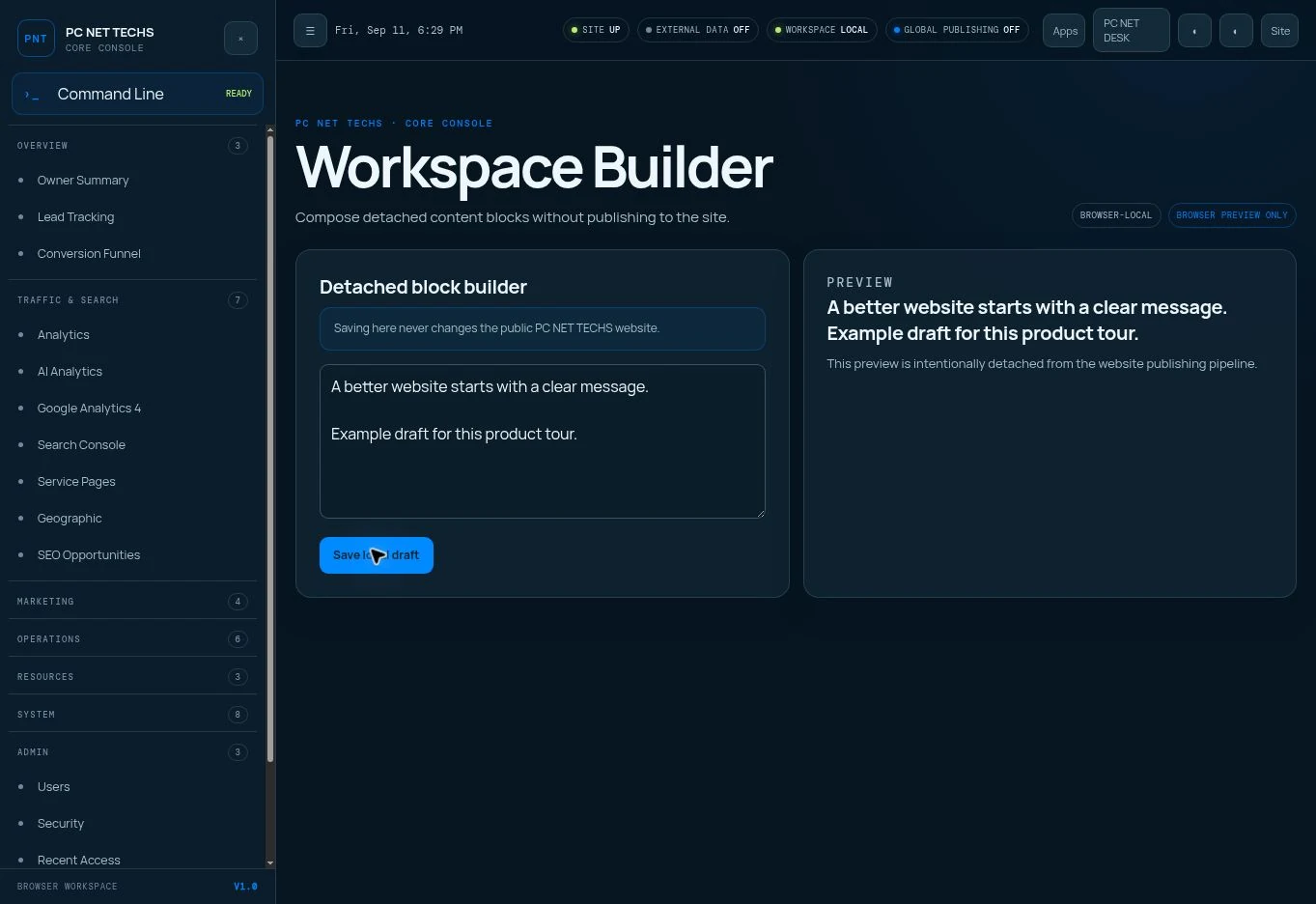
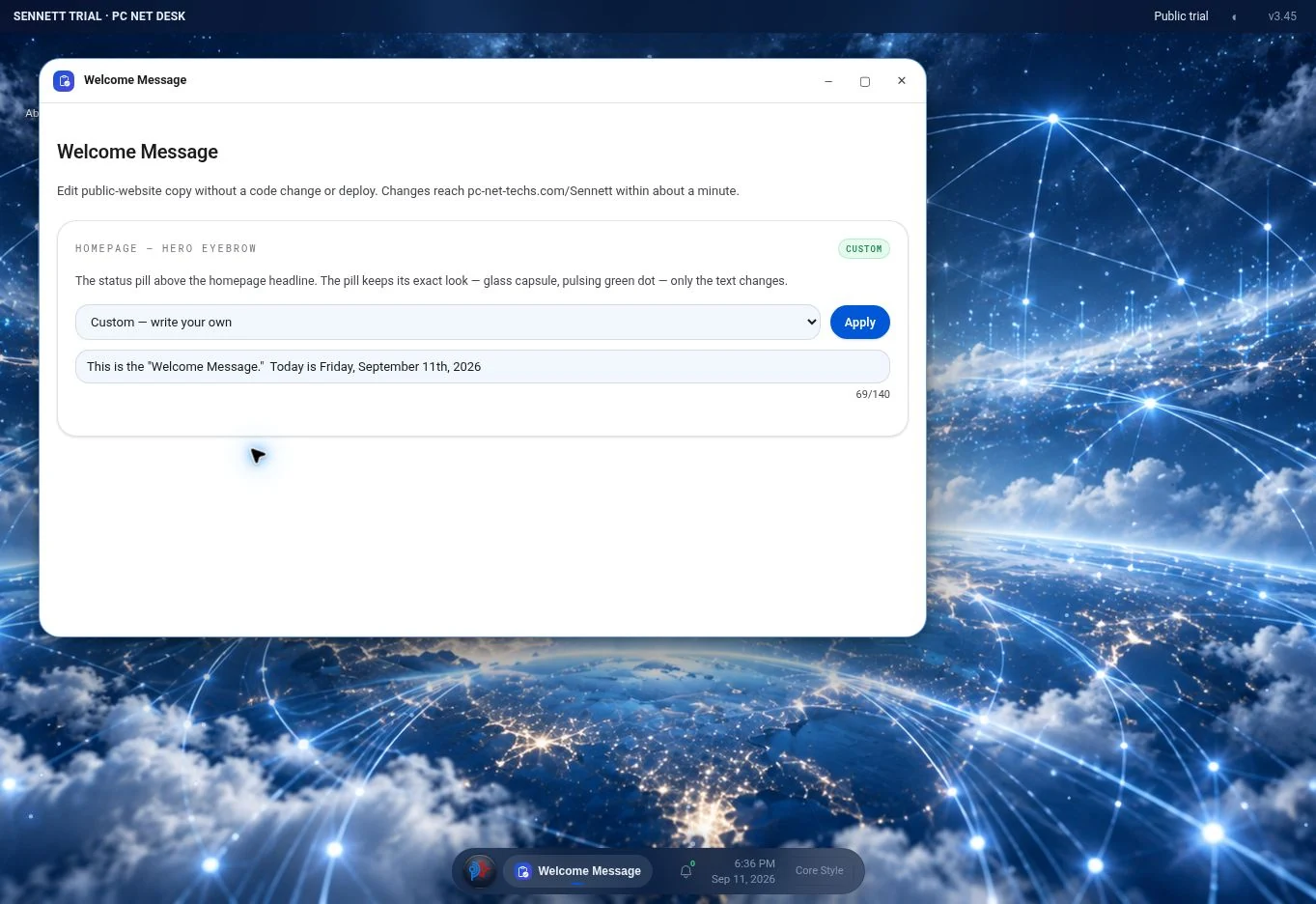
A focused editor changes the designated welcome or hero message for its assigned website.
Makes a frequent content adjustment quick to find and perform.
The Builder saves content, repeaters, section order, design, and logo state. Publication creates or replaces the selected page’s independent snapshot.
Supports dedicated pages while keeping work in progress separate from published content.
The source supports named custom schemes with brand and neutral color values, including separate light/dark and website/console settings.
Avoids repeating a collection of individual color choices every time a treatment is reused.
Console-specific theme and presentation settings operate separately from website style settings.
Lets the operator optimize the working interface without changing the public-facing brand experience.
Dedicated controls manage the desktop theme, accent, icons, type, backgrounds, and supported effects.
Keeps desktop personalization independent from the site and the dashboard.
Default, Windows 11, iOS, Android, Ubuntu, and Soft UI each provide a coordinated CSS treatment. Website, Core Console, and Desk can have independent selections.
Provides a coherent starting point instead of styling every component separately.
Five font families and six icon families can be selected independently. Fonts use the registered web or system font stacks; the icon renderer maps the same semantic icon to its selected family.
Retains consistent meaning while changing the visual voice.
Eight built-in palettes and custom schemes define five brand color roles. Custom neutral sets control background, surface, panel, border, muted copy, and text for website and Console light/dark contexts.
Keeps brand accents, surfaces, and reading contrast coordinated.
Network, Rain, Circuit, Hex, Packets, Warp, Aurora, Radar, Grid, and Signal share adjustable intensity, amount, density, speed, strength, and two colors; Off disables the effect.
Makes a distinctive presentation reusable without editing animation code.
Attract, Spawn, Repel, and Trail can be combined. Separate settings govern pointer parameters, click or tap responses, double-click boosts, and whether the effect runs on mobile.
Lets the operator balance interaction, motion, and the needs of different devices.
Named presets store a validated effect configuration. Apply a preset to the selected website, Console, or Desk surface; delete presets that are no longer needed.
Reduces repeated tuning and makes a preferred treatment reproducible.
At widths up to 980 pixels, two independent scroll-driven effects use an ease-out ramp. Controls set activation, ramp distance, maximum opacity, and maximum blur for the reading overlay and background blur.
Keeps the opening view expressive while making longer reading more comfortable.
Six size settings scale service, product, and Why Us cards, chips, badges, and FAQ items from 60% to 180%. CSS variables coordinate padding, icon size, and radius within each element type.
Changes visual emphasis while retaining the component’s proportions.
The Contact page currently supports desktop and mobile image overrides. Removing an override restores the selected website background. Developers can register more pages in the same system.
Creates page-specific identity with a clear fallback to the site-wide design.
Default, flat, glass, and gradient treatments expose a color and opacity for Console panels, header, and menu surfaces. Desk has its own appearance settings and starts from Console defaults until overridden.
Makes the operator’s workspace legible and personal without changing the public website.
Click supported preview text or search the field list, then edit within the field’s length and fit constraints. Shared rendering applies the site’s text-fitting behavior.
Makes content easier to find and reduces layout problems caused by oversized copy.
Supported collections expose add, duplicate, delete, and reorder controls; nested product bullets and collection size limits preserve the component structure.
Expands a page without rebuilding every repeated item by hand.
Move supported middle sections while Hero remains first and Contact remains last.
Allows a different narrative while preserving a predictable entrance and response point.
The Builder’s Style tab controls logo upload and visibility, theme, palette, font, icons, backgrounds, sizing, and effects.
Keeps content and visual refinement in one editing context.
The draft keeps content, structure, style, and logo state together and renders the site’s components in preview scope.
Shows how the actual website system treats the work before publication.
Choose a valid page name or an existing target. Publication copies the draft into independent records at /published/name; replacing a target asks for confirmation.
Supports service, campaign, location, and audience pages with deliberate replacement and separate published state.
The base schema defines 124 text fields in ten sections. Each field has a stable ID, visual role, label, original copy, line and character limits, and allowed text scale. Added repeater items receive their own field identities.
Gives people and agents precise targets and keeps text fitting tied to its actual component.
Ten groups define the allowed item types and minimum/maximum counts. Grid-based groups support row-aware movement, product cards contain one to eight nested bullets, and six middle sections can be reordered between the fixed Hero and Contact sections.
Allows meaningful composition while protecting the layout’s basic shape.
Restore one registered text field or reset all editable text. Original copy lives in the schema; item deletion and order belong to the separate structure model.
Makes a copy reset understandable and avoids treating it as a whole-site rollback.
The Builder edits registered copy and components. Business contact channels, metadata, form labels, and animated stat numbers have separate implementation controls. Product wordmarks are editable through their repeater fields. FAQ output uses the same resolved content for visible answers and structured data.
Protects functional details and reduces disagreement between visible content and machine-readable answers.
Each action selects a registered theme, palette, background, readability, motion, or interaction setting. Typed validation checks its value before storage.
Makes automated changes explicit and predictable.
The action stores its scheduled date and time and an optional daily or weekly repeat rule; recurring actions advance to their next due time after running.
Supports planned launches and recurring presentation routines.
Name, edit, enable, disable, or delete an action; inspect its next scheduled time and last-run information.
Makes upcoming work visible and lets an operator pause or revise it.
The runner checks enabled actions during website or Console renders, throttled to once per minute per running instance. A 15-minute heartbeat covers quiet periods, applies due values, refreshes settings, and records last-run time.
Balances reliable checks with a lightweight system that does not need a continuously running scheduler.
These actions target the main website’s registered settings. Builder publishing is a separate action; this scheduler changes registered website settings.
The administrator supplies a name and email. The system reserves a seat, creates or reuses a Wix member, approves and authorizes it, and requests a set-password email. The reviewed implementation caps authorized accounts at ten; a new account does not become an administrator.
Gives access a deliberate owner, a visible capacity limit, and a repeatable onboarding path.
Email acceptance is recorded separately from delivery. A failed provisioning attempt does not grant access.
Access records expose timestamps and outcomes for inspection.
Supports investigation and accountability with a usable event history.
Member checks, allowlists, configured passkey enforcement, IP policy, alerts, and Emergency Lock support the platform’s administrative access rules.
Restricts sensitive operations and gives the administrator controls for responding to access concerns.
A saved action contains a setting, validated value, scheduled time, repeat rule, and enabled state. The due-action runner applies the change and records execution.
Handles planned and recurring presentation changes without a manual visit at every scheduled time.
A fixed registry validates commands and dispatches to the same functions used by supported authenticated tools. It is not an operating-system shell.
Provides a direct route for repeated tasks without adding arbitrary code execution.
The Files app lists build-bundled source files and opens their text through an authorized, read-only endpoint. It does not browse the live server filesystem or edit deployed code.
Lets maintainers and authorized agents understand the implementation behind an interface without leaving the workspace.
An in-platform documentation view provides implementation, setup, and operating notes.
Preserves the knowledge needed to maintain and extend the system.
WebAuthn registration and verification pair browser credentials with server challenges and stored public-key records. Authorized controls list, rename, and revoke passkeys; the administrator can enable enforcement.
Supports strong sign-in without asking an agent or operator to handle a reusable password for every action.
The security view exposes validated IP entries and an enable switch. Server and administrative access flows apply their implemented identity and policy checks.
Gives the administrator an additional control for the intended operating environment.
Supported access flows record denied attempts, expose unacknowledged alerts, and use configured notification settings. The administrator can acknowledge reviewed alerts.
Turns access concerns into reviewable activity instead of relying on someone noticing an error screen.
Emergency Lock is checked by protected mutations and the scheduled-action runner. Its explicit recovery flow can lift the lock; the public lead form remains available.
Creates a way to interrupt administrative changes while continuing to accept business inquiries.
The demonstration interface guides the viewer through selected panels and explanatory steps.
Introduces the system without requiring the viewer to know its navigation first.
A presentation surface provides a sequential walkthrough with navigation and supported voice options.
Connects features to their purpose during a demonstration.
Browser speech synthesis uses device voices and user-controlled playback.
Offers an optional spoken route through the platform explanation.
The About app introduces the workspace, its capabilities, and its operating model.
Helps a new operator understand the system before exploring individual tools.
The design pairs visual tools with registered text commands, structured records, explicit scopes, and inspectable source. Agents can work through an authorized browser session and supported command routes.
Lets an agent translate a task into named operations and explain the result in the same terms as a human operator.
The help command lists 27 command families; help followed by a command explains its syntax. Double quotes keep multi-word arguments together.
Reduces guesswork and makes repeatable tasks easier to plan.
An authenticated POST to /api/cc/console accepts a command string and returns output lines plus an isError flag. Commands are limited to 500 characters; the technology reference documents the exact response behavior.
Provides a small, explicit integration surface that an authorized agent adapter can use.
Registered commands call the functions used by the supported visual modules. Operations such as task status, notes, approvals, forms, and due-action execution reuse the platform’s data layer.
Reduces the chance that clicking a control and issuing a command produce different business behavior.
Stable field IDs, component group IDs, value registries, record IDs, and live/draft/published scopes describe the target of a change. The Builder keeps content, structure, style, and logo state separate.
Supports precise edits, easier review, and a clear explanation of the affected state.
Agent use of administrative surfaces requires the appropriate member identity, permissions, and applicable passkey or lock checks. A browser session or separately implemented adapter supplies that context.
Keeps automation tied to an accountable identity and the operation’s actual access rules.
Read the current record, issue one scoped operation, inspect HTTP and command error information, then read the affected record or page again. A timed-out write needs a state check before a retry.
Helps an agent avoid duplicate work and distinguish a successful request from the intended result.
This guide provides a JSON catalog and a plain-text agent reference containing capability explanations, command syntax, schemas, API descriptions, and operating constraints. The files are read-only documentation.
Makes discovery and handoff easier without requiring an agent to infer contracts from screenshots.
Public content and structured FAQ data make the site readable; llms.txt offers a discovery summary. AI Analytics separates recognized crawler activity from supported AI referral traffic.
Connects machine discovery with observable visits while keeping agent operation and traffic measurement distinct.
THE SCREEN TOUR
18 interface captures, from the desktop and Console to the Style Engine and Builder. Select a screen to enlarge it. Captured September 2026; each screen retains its trial or preview source label.
View full screenshot ↗View full screenshot ↗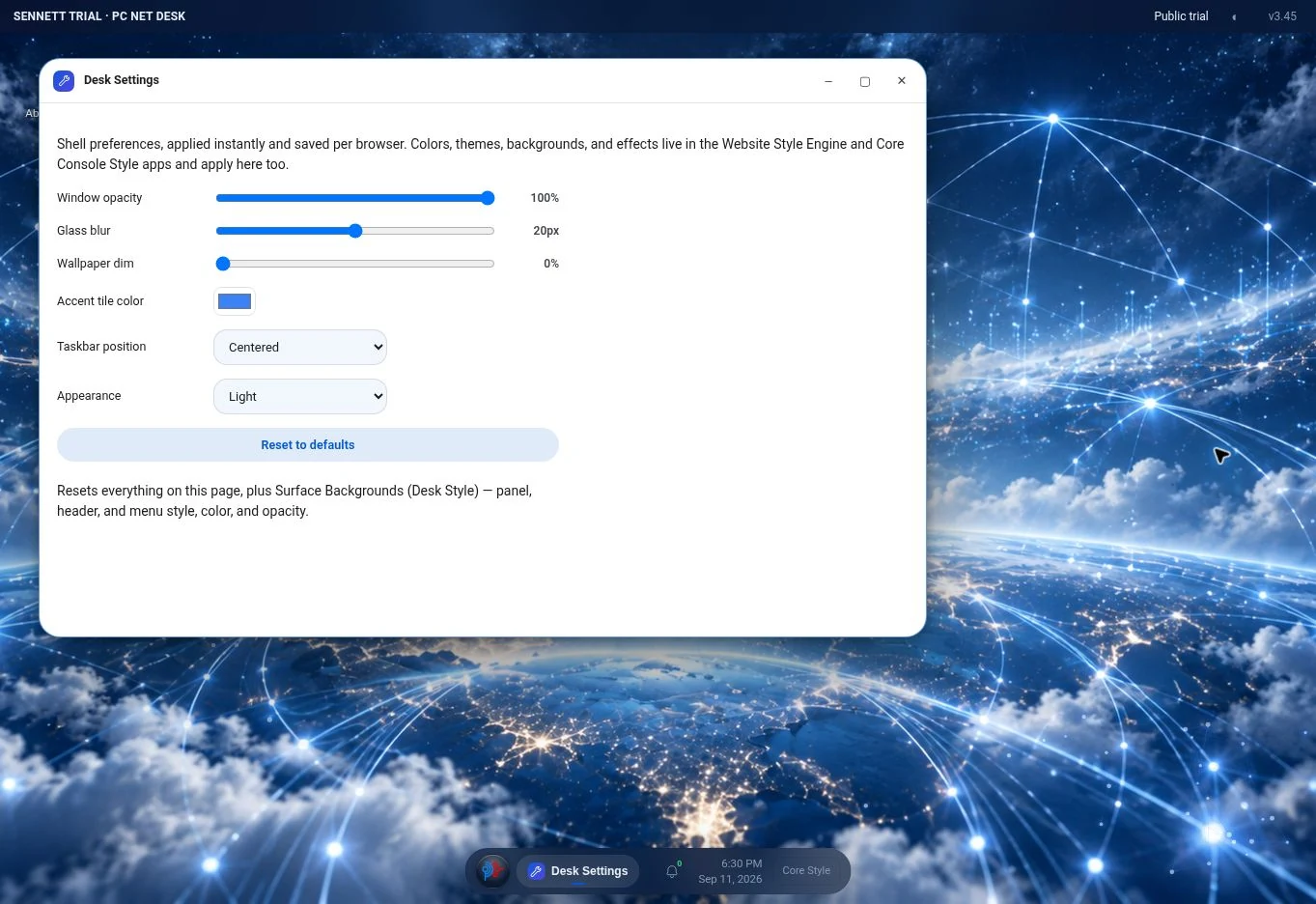 View full screenshot ↗
 View full screenshot ↗View full screenshot ↗View full screenshot ↗
 View full screenshot ↗
 View full screenshot ↗View full screenshot ↗View full screenshot ↗View full screenshot ↗View full screenshot ↗View full screenshot ↗
 View full screenshot ↗
 View full screenshot ↗View full screenshot ↗View full screenshot ↗View full screenshot ↗
BUILT AROUND THE WHOLE JOB
Visitor journeys, acquisition, search, marketing, health, and competitor research give decisions a basis in recorded activity and traceable information.
Explore visitor intelligence ↗The Builder connects structured content, design, preview, and publication. The Style Engine applies coordinated visual choices across the selected website.
Explore the Builder Engine ↗Tasks, approvals, notes, reports, and scheduled website changes bring delivery and ongoing improvement into one working environment.
Explore website automations ↗Interface tour: screenshots retain their public trial, browser-preview, and Builder-source labels. The guide describes the connected platform; the values shown in earlier captures are illustrative. Explore selected styling controls in the public trial ↗